CS 450/550 -- Fall Quarter 2025
Project #6
100 Points
Due: November 26
Shaders, I
This page was last updated: November 16, 2025
I created a summary document describing the steps in using Shaders.
It is called
Shader Steps.
Check it out. It might help you!
Introduction:
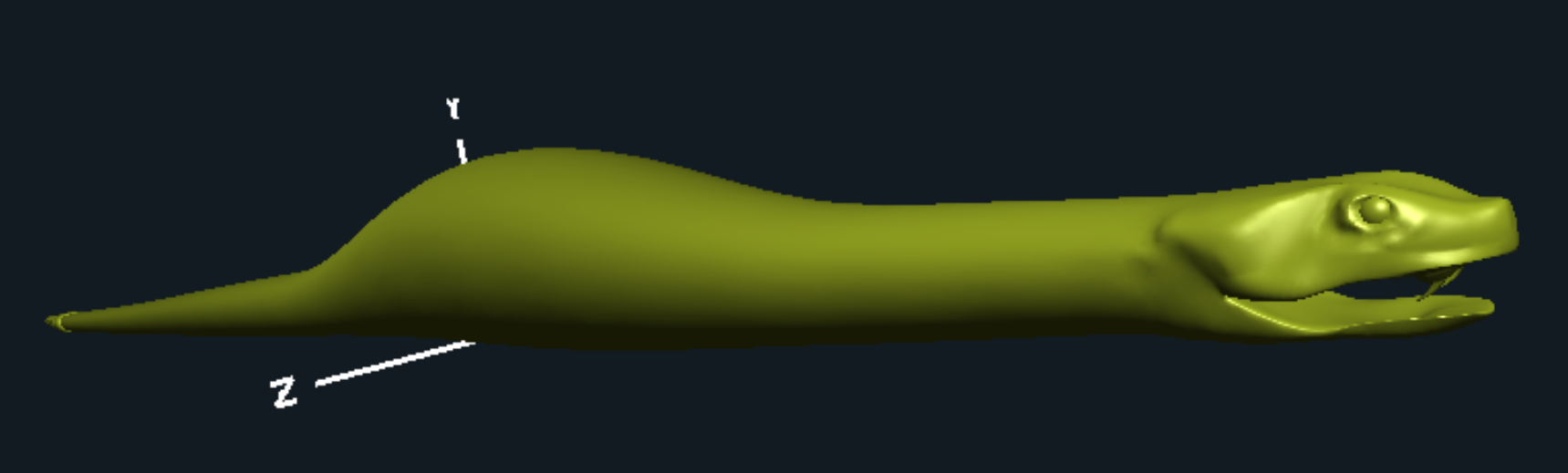
The goal of this project is to use a GLSL vertex shader to enlarge a shape's Y-Z cross-section as you go down it.
This effect is sometimes called "the pig-in-the-python".
You can key off of x, y, or z coordinates, or from s and t.
(x is probably easiest.)
Your fragment shader will implement per-fragment lighting.
Learning Objective:
When you are done with this assignment,
you will understand
how to create a GPU-program, known as a shader.
Your vertex shader will let you alter the shape of the object.
Your fragment shader will let you control the coloring and lighting pattern on the object.
Today's games and movies employ hundreds of shader programs to get the variety of special effects they need.
Instructions:
-
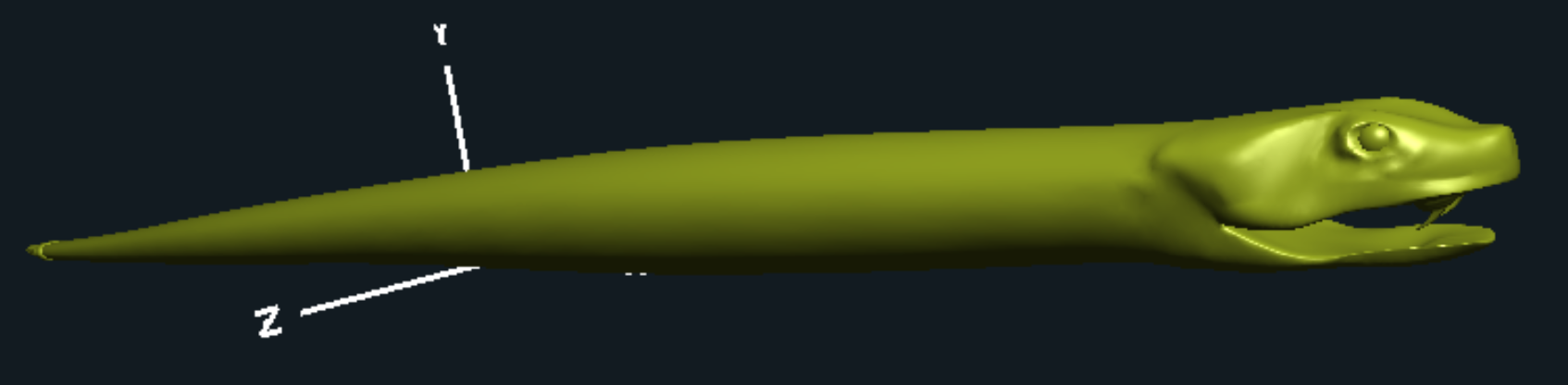
Since this called a pig-in-the-python, I am giving you a snake OBJ file,
but you are free to use any object that shows the effect.
Here is an OBJ file you can use:
Left-click to look at it.
Right-click to download it.
-
The snake's X coordinates go from around -13. to +9.
That means that at a given value of Time,
the x coordinate of the center of the bulge will be at:
Bulge moving tail-to-head:
float x = -13.f + Time*( 9.f + 13.f );
Bulge moving head-to-tail:
float x = 9.f - Time*( 9.f + 13.f );
-
Use our GLSLProgram C++ class to create a shader program from your vert and frag files.
-
Write a vertex shader that creates a smooth bulge that is able to travel the length of the snake.
The beginning and ending X coordinates of the pulse need to be computed as a function of Time.
You can build the bulge any way you want, but one way to do this is by using the
GLSL built-in smoothstep( ) function.
The vertex shader should also setup for per-fragment lighting.
When lighting, don't worry about the fact that you are changing part of the snake's coordinates.
Just setup the per-fragment lighting for the original snake surface normal vectors.
-
You need to be able to change the height of the bulge under program control.
This could be continuous, such as using a sine function.
Or it could be discontinuous, such as toggling between a low value and a high value.
You can do this any way you want, but one way to do this is by using the
the animation information from our SinesAndCosines handout.
-
You can hardcode the bulge's width.
This does not need to be animated unless you want to.
-
In your C++ code, use the SetUniformVariable( ) method to set the uPigD and uPigH uniform variables.
| Variable
| Type
| Purpose
|
| uPigD
| float
| Where the bulge is centered along the length of the snake
|
| uPigH
| float
| How high the bulge is at uPigD
|
-
Write a fragment shader that performs per-fragment lighting.
-
To help you get started, here are some program skeletons to work from:
-
The fragment shader also needs lighting parameters:
Color, SpecularColor, Ka, Kd, Ks, and Shininess.
These can be hard-coded.
They can also be animated if you so choose.
-
In this project, the fragment shader's sole job is to apply per-fragment lighting to the object.
Ignore the fact that we are displacing the object and just use the original un-displaced surface normals.
-
Use the in and out keywords to pass the vL, vN, and vE variables from the vertex shader to the fragment shader.
Those 3 variables will be interpolated in the rasterizer so that each fragment gets its own copy of them.
(On a Mac, use the word varying instead of in and out.)
The GLSLProgram C++ class
The glslprogram.cpp file is already in your Sample folder.
You just need to un-comment its #include.
See the class Shader notes for how to use the GLSLProgram C++ class.
Turn-in:
Use Canvas to turn in:
- Your .cpp, .vert, and .frag files
- A short PDF report containing:
- Your name
- Your email address
- Project number and title
- A description of what you did to get the display you got
- A couple of cool-looking screen shots from your program.
- Tell us what convinces you that your animation is indeed doing what you set it up to do.
- The link to the
Kaltura video
demonstrating that your project does what the requirements ask for.
If you can, we'd appreciate it if you'd narrate your video so that you can tell us what it is doing.
-
To see how to turn these files in to Canvas, go to our
Project Notes noteset,
and go the the slide labeled How to Turn In a Project on Canvas.
-
Be sure that your video's permissions are set to unlisted..
The best place to set this is on the
OSU Media Server.
- A good way to test your video's permissions is to ask a friend to try to open the same video link that you are giving us.
- The video doesn't have to be made with Kaltura. Any similar tool will do.
Grading:
| Item | Points |
| A smooth bulge of some sort appears somewhere on the snake | 20 |
| The smooth bulge moves down the snake as a function of time (uPigD) | 30 |
| The smooth bulge has its height animated (uPigH) | 30 |
| Per-fragment lighting works | 20 |
| Potential Total | 100 |