Canvas Course Accessibility Compliance Guide
A comprehensive guide to ensure your Canvas course meets OSU Ecampus accessibility standards and provides an inclusive learning experience for all students.
This guide requires ONID SSO authentication for some external resources.
Back to the Main Course Development and Improvement Guide page.
Canvas Course Accessibility Compliance Check Guide
-
Click on the Ally link in the Canvas toolbar
-
The tool will run and provide you with a Course accessibility score
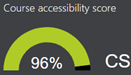
-
Review the issues with easy solutions to fix and click Start
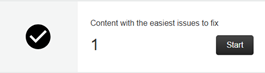
- You should see a list of suggestions to help remove any flags. Review each item to implement the suggested changes.
-
Next, fix content affecting your score and click Start
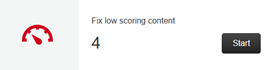
- You should see a list of suggestions to help remove any flags. Review each item to implement the suggested changes.
-
Next, you may see a link to fix major issues and click Start
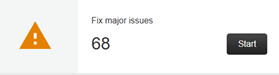
- Review the list and address any issues applicable.
- You may find these issues are more complex or simply unavoidable.
- Contact the Course Development Manager (CDM) for guidance on addressing any issues in this category that you are unable to resolve. You will need to note the types of suggestions you are unable to resolve.
- You do not need to obtain a 100% for compliance. 90%-95% range can be an acceptable level without major issues.
- **On-campus or non-EECS Faculty: Please refer to this resource for University Digital Accessibility support
-
Once you have resolved the issues highlighted your Ally report, you can run a second check with the UDOIT tool.
- This tool can provide easy-to-fix suggestions that can improve the student experience in your course…PLUS, most of the suggestions here are also QM requirements.
- Run the UDOIT Accessibility check under the settings menu.
- The tool will run when opened, and may take a few minutes to create a report.
- Assess the recommendations to prioritize the need for changes or improvements, not all recommendations require implemenation.
BEWARE Changes made using the UDOIT tool cannot be reversed. Make recommended changes directly to your Canvas pages using the Edit tool, not the UDOIT tool, so page versioning is maintained.
-
Once all accessibility issues are resolved, run the Link Validator tool
- You can find this under Settings → Validate Links in Content
- It may take a few minutes for the report to render
- Fix or remove any broken links and run the report again.
- This tool can lead to a lot of false positives. Check each link manually, as there are often links that actually do work and no changes are needed.

-
Videos Requiring Captioning or that Contain Visual Components
- All videos shared within your Canvas course should be hosted within Kaltura Media. See Kaltura captioning services at the bottom of this page.
- When recording videos, describe any visuals as part of your voice track.
- If your video contains visual components not described in the voice track, you will need to take an additional step for complaince by adding audio descriptions (AD).
- For videos needing additional AD services, prepare a Video Audit Spreadsheet table at the bottom of this page and email the Course Development Manager for further instructions.
Tips for Making Compliant Content Based on Your Report
SMART SEARCH
If an item is flagged on your Ally report, use the Smart Search (now called Ignite AI Search) tool to locate the image, document, or item.
Images / Graphs
- Alternative Text for Images should be limited to 120 characters. For longer descriptions, create a caption with the full text of the image.
- Mark all decorative images as "decorative" in Canvas.
- Avoid using file names or vague descriptions as ALT-TEXT.
- Here is the official guidance for creating good alternative text for your course visuals.
- ASU has a GenAI tool to help generate ALT-Text for your images. Here is the ASU alt text generator.
- UC Boulder has some tips on creating Inclusive ALT-Text for your images. Here is the UC Boulder Inclusive Alt Text Guide.
Equations
- Ecampus recommends using the LaTeX tool
- Alternatives to using LaTeX are available. It is suggested if you need an alternative to use the Microsoft Equation Editor tool in Word and include that Word document in your course for students.
- Here is the official guidance to create compliant equations on Canvas, in your PowerPoint Slides, or in Word documents.
PDF Documents
- Where possible, avoid using PDF documents.
- Provide Word documents or a formatted Canvas page as alternatives.
- Here you can find the most up to date official Ecampus Online Course Syllabus in Word format.
- Here is the official guidance on using PDF documents in your course.
- Creating and verifying PDF accessibility using Adobe Acrobat Pro when using PDF documents in your course.
Text Formatting, Headings, Links, Tables, and More
- Use Canvas's Rich Content Editor to apply heading styles (H2, H3, etc.).
-
Maintain a logical heading structure (e.g., don't skip from H2 to H4).
- Avoid using bold or font size alone to indicate headings.
- Use lists and paragraph formatting for clarity and readability.
- Links should be descriptive, embedded in the text. You don't want screen readers reading long URLs.
- Tables should contain proper headers and structure.
- This tool can help check your color contrast usage is accessible. WebAIM Contrast Checker.
- Here is the official guidance for creating accessible text, headings, links, lists, tables, and more on Canvas.
Videos
- Videos created with the OSU media team are automatically captioned as part of development. If you recorded videos in your course during an official development or redevelopment, your captioning will go through an automatic service and then a human-reviewed process and will meet ADA requirements.
- Videos hosted in Kaltura, including Zoom meeting recordings (after Dec 18, 2025) will automatically have machine-generated captions added using Automated Speech Recognition. You oversight is needed to validate accuracy.
- Kaltura automatically generates transcripts from the video captions. displaying them in an interactive player that highlights text and lets you click to navigate. Captions can be edited using Kaltura's built-in editor.
- Videos from third-party sources will need to be checked for compliance.
- Find information on how to create captions for Kaltura, YouTube, Zoom, and Social Media at the bottom of this resource.
- If you are adding permanent course videos outside of a formal development or redevelopment project, please contact the Course Dev Manager to coordinate with Ecampus Faculty Support.
- If you are adding one-time-use videos such as weekly announcements, please review the auto captions on your video and edit them for accuracy. These videos do not need to be sent to Ecampus.
- New accessibility requirements also ask for audio description (AD), or a description of important elements in the visual field, to be included with videos.
- You can help meet this requirement by describing any visuals in your videos as part of the narrative track.
- Here is an example by OSU faculty member, Brigitte Cluver, that provides an example of how to approach the inclusion of AD in narration.
- If you ask students to post videos as part of a Canvas discussion or assignment, be aware that there may be a delay in their ability to submit because auto captions must be processed first. Consider reminding students to begin early or offering flexibility on submissions that are late.
- Here is the official university guidance for creating compliant video and audio.
- Email this spreadsheet to the Course Development Manager (CDM). Copy your ID (if you are currently under development).
- For on-campus or non-EECS faculty, please reach out directly to the media team or refer to this resource for University Digital Accessibility support
Ecampus Guidance for Video Content:
Video Audit Table:
If your video does not have closed captioning, requires additional visual descriptions, and/or needs a third-party compliance check, create a spreadsheet using the following table layout to request CC from media services:
| Video Title | Video URL | Canvas Page Name | Canvas Page URL | Captioning Needed | Visual Descriptions Needed | 3rd Party Vid Check |
|---|---|---|---|---|---|---|
Contact Information
For questions about accessibility compliance, contact the Course Development Manager.
Danielle Safonte email: safonted@oregonstate.edu
Designed for Oregon State University Electrical Engineering and Computer Science Online Instructors. Permission required for distribution.